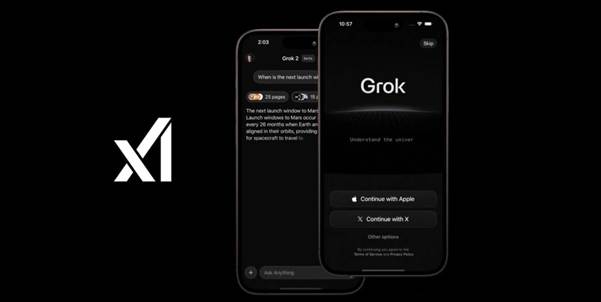
In a landscape dominated by polite and often predictable AI assistants, Grok has carved out a unique niche. Developed by xAI, this chatbot is designed to be the “spiciest” option on the market, offering a mix of real-time knowledge, wit, and a willingness to answer questions that other AIs might dodge.
While primarily integrated into the X (formerly Twitter) platform and mobile devices, bringing the Grok experience to your Windows PC unlocks a powerful workflow for research, coding, and content creation.
Beyond the Standard Chatbot: What is Grok?
Grok is not just another text generator; it is an AI modeled after the Hitchhiker’s Guide to the Galaxy, intended to answer almost anything and, harder still, even suggest what questions to ask. Unlike its competitors, which are often trained on static datasets with knowledge cutoffs, Grok’s defining characteristic is its real-time access to the world via the X platform.
The core experience of Grok is an app designed for information synthesis and creative exploration. It functions as a research assistant that doesn’t just read old articles but scans live social media conversations, news, and posts to give you the most up-to-date answer possible. Whether you are tracking breaking news, analyzing financial trends, or just looking for a laugh, Grok processes the “now” rather than the “past.”
Feature Deep Dive: Real-Time Data and “Fun Mode”
The most significant utility of Grok lies in its dual-mode personality. In its standard mode, it acts as a highly capable productivity tool. It can parse complex documents, write Python code, and debug software problems with a high degree of accuracy. Users have reported success using it to troubleshoot Linux installations or generate HTML snippets, often finding it faster than sifting through forums.

However, the “Fun Mode” is what truly sets it apart. By toggling this setting, Grok adopts a rebellious, witty, and often sarcastic tone. It isn’t afraid to roast the user or offer “edgy” takes that would trigger safety filters in other models. For users tired of the sterile, corporate tone of standard AI, Grok feels more like chatting with a smart, cynical friend.
Visuals and Code: Creating with Grok
Grok has rapidly evolved beyond text. Recent updates have introduced image generation capabilities (powered by models like Flux or Aurora), allowing users to create photorealistic images or stylized art directly within the chat interface. This is particularly useful for content creators on PC who need quick thumbnails or concept art without switching between different creative suites.
For developers, Grok’s coding abilities are a major draw. It can visualize code output, generate scripts, and even help build simple games. The ability to upload screenshots of code or errors and have Grok analyze them adds a layer of utility that rivals dedicated coding assistants.

Why Run Grok on Windows?
While Grok is accessible via the web, running the dedicated mobile app interface on Windows through an emulator offers specific advantages. It allows you to keep Grok active in a standalone window, separate from your browser tabs, which is crucial for maintaining focus during deep work. Additionally, the mobile app often receives specific interface updates—such as voice mode or specific companion personas—before the web version.
Using the app on a larger PC screen also improves the experience of analyzing generated images and reviewing long-form code, giving you the real estate needed for serious productivity that a smartphone screen simply cannot match.
How to Install Grok on Windows PC
To get the full mobile app experience of Grok on your desktop, you will need to use an Android emulator. This software simulates a mobile device on your computer, allowing you to run Android apps seamlessly.
1. Select an Emulator: Download and install a reputable Android emulator such as BlueStacks, LDPlayer, or MEmu. These tools are optimized to run modern apps with minimal lag.
2. Configure the Emulator: Launch the emulator and sign in with your Google account to access the Play Store. Ensure your emulator settings are optimized for performance (allocating at least 4GB of RAM is recommended for AI apps).
3. Install the App: Search for the Grok app (or the X app, if Grok is accessed through it) within the emulator’s store.

4. Download Source: If you prefer a direct setup or need a specific version, you can download Grok for Windows to get started.
5. Launch and Log In: Open the app, log in with your credentials, and you can now access real-time AI assistance directly from your Windows desktop.