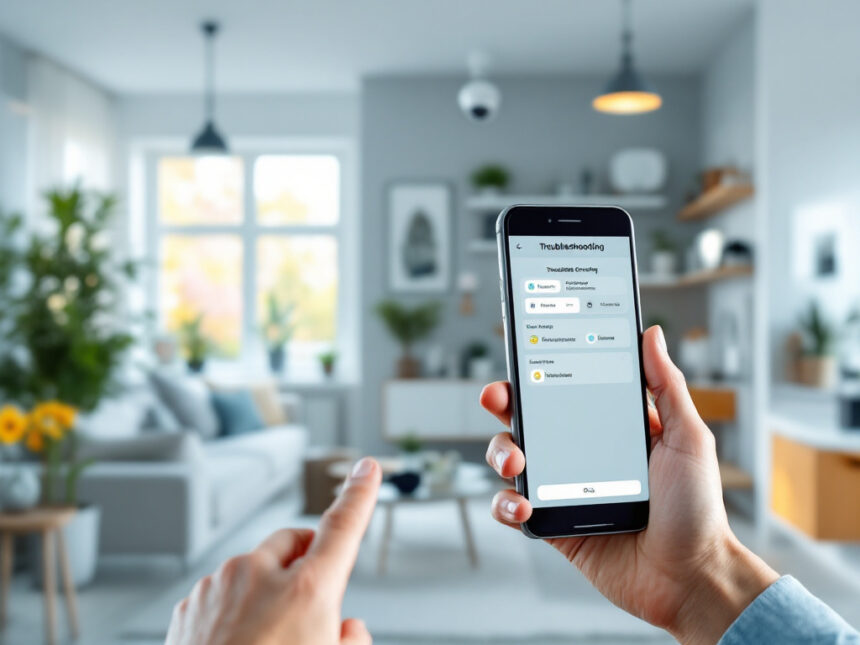
A quiet, reliable smart home is a big confidence booster. When your cameras, door locks, and alarms work the way they should, you feel safer walking in the door at night and more relaxed when you are away. Smart home security troubleshooting is simply the set of habits that keeps everything running smoothly so you can trust your system instead of worrying about it.
This guide walks you through practical fixes for common problems, plus a few simple upgrades that make your setup more dependable over time.
Start with a quick safety and status check
Before you dive into app menus and router settings, it helps to zoom out.
Ask yourself:
- Are doors and windows still locked and latched?
- Are key devices like your main door lock, alarm panel, and primary camera powered on?
- Can you see any obvious damage, loose wires, or low battery warnings?
You are not just troubleshooting gadgets, you are confirming that your home is still secure right now. If something looks physically wrong, fix that first. Then move on to the tech.

If you are still choosing devices or planning upgrades, it is worth exploring complete smart home security systems and smart home security packages so you can build reliability in from the start.
Fix the most common camera issues
Security cameras are usually the first line of defense, so any problem feels urgent. The good news is that many issues are simple to solve on your own.
No video, black screen, or frozen image
A camera that shows a black screen or a frozen last frame is often dealing with power or wiring trouble, not a complicated hardware failure.

Work through these steps:
- Confirm power. Check that the camera is plugged in securely, the outlet works, and any indicator lights are on. Power supply problems and faulty cables are some of the most common causes of security camera failures as of late 2025.
- Inspect the cable. If it is a wired camera, look for kinks, cuts, or loose connectors. A damaged cable or loose plug can interrupt the signal and cause a black screen.
- Check the input. If the camera is connected to a monitor or NVR, make sure the correct video input is selected. A wrong input setting can look exactly like a dead camera.
- Reboot the camera. Unplug it for 10 to 15 seconds, then plug it back in. A simple power cycle often clears temporary glitches.
If you are shopping for or expanding your setup, look for smart security cameras for home that support easy status LEDs and app diagnostics, since those make problems quicker to spot.
Wi‑Fi cameras that keep disconnecting
IP and Wi‑Fi cameras rely on a solid network. When they drop offline or fail to connect, the cause is usually a weak signal, interference, or configuration issues.
Start with the basics:
- Stand near the camera location and check Wi‑Fi signal strength on your phone.
- Double check that you are using the correct network name and password.
- Restart the router and the camera to clear temporary network conflicts.
Security cameras often fail to connect to Wi‑Fi because of signal interference from walls, furniture, and electronics like microwaves and cordless phones, as explained by HSI Security in a November 27, 2024 guide. Most consumer cameras are designed for the 2.4 GHz band, which travels farther than 5 GHz but is more vulnerable to interference. Cameras that only support 2.4 GHz cannot connect to 5 GHz networks at all, their hardware simply is not compatible, as noted in HSI Security’s November 2024 blog on Wi‑Fi bands for cameras.
For persistent issues, HSI Security recommends a few advanced steps:
- Update firmware on both your cameras and your router so you have the latest stability fixes.
- Configure Quality of Service (QoS) settings on your router so camera traffic gets priority over less important apps.
- Consider running a wired Ethernet or Power over Ethernet (PoE) line to critical cameras for maximum reliability.
- In larger homes, adopt a mesh Wi‑Fi system to give cameras a strong signal wherever you place them.
Regular maintenance also goes a long way. HSI Security suggests routine power cycles, checking physical connections, cleaning lenses, and reviewing network performance to keep smart cameras at their best.
If you are building a system from scratch, it can help to choose wireless home security systems that are designed to work together so you do not have to troubleshoot each device in isolation.
Solve smart lock and door access problems
A finicky smart lock is more than a nuisance, it directly affects your sense of safety. Knowing a few simple fixes keeps you from getting stuck outside or leaving a door less secure than you think.
Low battery, no response, or weak motor
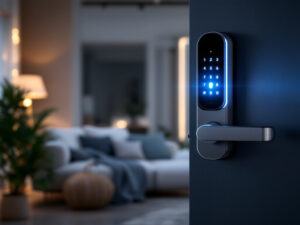
If your electronic door lock is unresponsive or you see a low battery indicator, treat it as a priority. According to guidance from Lowe’s in September 2024, you should replace the batteries with fresh ones, install them with the correct (+/−) orientation, and clean the battery contacts so power can flow properly. Onetouch’s smart lock ecosystem even includes battery health dashboards and central warnings to help spot problems early across multiple units, which is useful in multi unit properties.
During power outages or internet failures, Onetouch smart locks continue to support local PIN codes and Bluetooth connectivity. That means you can still lock and unlock doors, even when Wi‑Fi is down, which is a major benefit for overall smart home security reliability.
If you have not yet chosen a lock, look at smart door locks for home that clearly show low battery status and support offline access so you can avoid avoidable lockouts.
Connectivity glitches and app control issues
Sometimes the lock works fine locally, but the app will not talk to it.
Common fixes include:
- Restart the lock and any wireless bridge or hub.
- Restart your router or smart home hub.
- Confirm the lock is within Wi‑Fi or Z‑Wave / Zigbee range and not blocked by heavy walls or metal doors.
Lowe’s notes that connectivity problems in electronic locks are often solved by moving the router closer or using Wi‑Fi extenders when signal interference from walls or metal objects is an issue.
It also helps to think about how all your devices will integrate. Many homeowners find that a central hub or platform makes smart security system integration much smoother so a single app can manage your lock, smart home video doorbell, cameras, and smart security sensors.
Keypad codes and mechanical issues
If keypad buttons fail or codes are not recognized:
- Enter the code slowly and deliberately.
- Check the code storage limit in your manual, you may need to delete older codes.
- Clean the keypad following the manufacturer’s instructions, dirt and moisture can cause missed presses.
- If certain keys stay unresponsive, the keypad or entire lock may need replacing.
Mechanical issues, like a lock that will not turn or a latch that keeps sticking, are often about the door rather than the smart hardware. Lowe’s suggests using a silicon based lubricant on moving parts, adjusting the strike plate, and correcting misaligned doors by adjusting hinges or planing where necessary.
For apartments or rentals where you cannot alter the door, look for smart home security for renters that emphasize no drill and reversible installation, such as retrofit locks that fit over existing deadbolts.
Restore alerts and notifications to your phone
Alerts that arrive late, or not at all, can quickly drain your confidence in a smart security system. Push notifications need both the app and your phone’s settings to line up.
When alerts stop arriving
If you suddenly stop receiving smart home security notifications:
- Open your security app and verify that notifications are enabled for each event type.
- Log into the web portal, if your provider has one, and confirm the notifications are configured correctly and that the trigger events are actually reporting.
- Power cycle your phone. Turning it off, waiting 10 seconds, and turning it back on can restore a more stable cellular connection needed for push alerts.
Microsoft has discontinued support for push notifications on Windows Phone devices using versions below 8.1. If you still rely on an older Windows Phone, that change can prevent you from receiving smart home alerts at all.
If issues persist, some platforms allow you to remove your phone as a push device and re add it. This refresh often clears hidden registration problems between your phone and the notification service.
When alerts only work with the app open
If you only receive notifications while the app is open, it is usually a background permission issue:
- Check your phone’s settings to make sure the security app is allowed to run in the background.
- Confirm that it can use mobile data and is not blocked by any battery saver mode.
Once you trust your alerts again, it is a good time to review what you are actually monitoring. For example, you might pair your notifications with smart window sensors, smart water leak detectors, or a smart home alarm system so you get early warnings about more than just door activity.
Tame network and app headaches
Behind almost every smart home security troubleshooting task is your network. Many common annoyances trace back to Wi‑Fi congestion, weak signals, or devices that were never designed to work together.
Devices that do not “talk” to each other
Thermostats, cameras, lights, and locks often come from different brands. One of the top challenges in smart home security is that they do not automatically work together. You might need:
- A smart home hub that supports multiple standards.
- A platform or service like IFTTT to connect devices through simple “if this, then that” rules.
If you are just getting started, browsing top smart home security brands and smart home security reviews helps you select devices that integrate easily, instead of assembling a collection of isolated products.
Wi‑Fi and mesh networking basics
Connectivity issues are especially common for smart cameras and lights. Manufacturers and integrators often recommend:
- Upgrading to a more capable router that can handle many devices at once.
- Implementing mesh networking so every room has strong Wi‑Fi.
- Keeping Zigbee or Z‑Wave devices within range of each other so they can piggyback signals without dropouts.
These improvements do not just fix today’s issues, they also increase your overall smart home security reliability as you add more devices.
If your place is small and you want a simple approach, look at best budget smart home security options that bundle a few reliable devices with a straightforward app. In larger homes, you may prefer more advanced smart home security automation so everything from lights to locks reacts automatically to your routines.
Cut down on false alarms and battery drain
A system that constantly chimes, beeps, or runs out of batteries will not inspire much confidence. Fine tuning settings makes a big difference in day to day peace of mind.
Prevent motion alerts at the wrong time
To stop cameras or sensors from triggering at every small movement:
- Configure “smart zones” that ignore busy areas like sidewalks and focus on your door, yard, or driveway.
- Enable human or person detection where available so the system pays attention to people instead of every branch swaying in the wind.
- Adjust sensitivity levels so pets and distant motion do not constantly set off alarms.
Manufacturers highlight these tools as key ways to prevent smart security devices from activating at incorrect times and causing avoidable false alarms.
Extend battery life on wireless devices
Rapid battery drain in wireless cameras, locks, and sensors is often tied to weak Wi‑Fi or too many active features. To get more life from each charge or set of batteries:
- Move devices closer to your router or to a mesh node.
- Turn off unnecessary features, especially high frame rate video or constant live viewing.
- Clean battery contacts when you replace batteries, and always use quality, fresh cells.
Onetouch’s battery dashboards are a good example of how smart platforms can help. They provide central warnings so you can swap batteries on your own schedule instead of being surprised by last minute low battery alerts across a building.
If you are comparing options, look at best smart home security devices and smart home security upgrades that highlight long battery life and clear status reporting as part of the feature set.
Think of smart home security troubleshooting as regular dental checkups for your gadgets. A few small, consistent habits prevent painful surprises later.
Build a more dependable smart security setup
Once you have cleared the most urgent problems, you can start thinking strategically about your system as a whole.
Here are a few simple ways to increase your long term confidence:
- Choose devices with easy physical controls, such as lock keypads and light switches, so you are not dependent on your phone at every moment.
- Schedule a monthly “security check” where you test your smart home alarm systems, door and window sensors, cameras, and locks.
- Learn how to secure each device properly by reviewing guides on how to secure smart home devices and smart home security encryption.
- If you enjoy hands on projects, explore diy smart home security to understand your system better and feel more in control.
As you gain experience, it becomes easier to spot patterns quickly. A camera that goes offline after every router reboot or a lock that always hesitates in cold weather will not feel mysterious anymore. You will know exactly where to start and which fixes tend to work.
For more ideas and next steps, you can browse smart home security tips, smart home security benefits, and smart home security faqs to round out your toolkit.
FAQs
1. How often should you test your smart home security system?
Aim for a quick test once a month. Check that cameras stream live video, motion alerts trigger correctly, door and window sensors report open and closed states, and your main alarm or siren activates as expected. A slightly deeper test every few months, including app notifications and remote access, keeps your system ready for real emergencies.
2. What should you do first if a device goes offline?
Treat it like any connected gadget. Confirm power, check that it is within Wi‑Fi or hub range, and restart both the device and your router. If it still will not connect, verify login details, Wi‑Fi band compatibility, and firmware updates. If multiple devices fail at once, the problem is usually with your network, not the individual device.
3. Are smart security systems safe to use in apartments and rentals?
Yes, as long as you choose products made for renters. Many options are no drill, use adhesive mounts, or retrofit existing locks so you do not damage doors or walls. You can explore smart home security for apartments and smart home security for renters for ideas that respect your lease while still improving safety.
4. How can you make smart home troubleshooting easier over time?
Keep a simple notes file with your Wi‑Fi details, device locations, and any special settings you change from the defaults. When something goes wrong, you can refer back instead of trying to remember what you did months ago. Sticking to a few trusted brands and integrated smart home security systems also reduces the number of different apps and menus you need to learn.
5. Do you need a professional installer for a reliable smart security setup?
Not always. Many homeowners are comfortable with affordable smart home security kits, especially those labeled as DIY friendly. If you prefer to hand things off, or you have a larger home with complex needs, professional installation can be worth it. Either way, having a basic understanding of smart home security troubleshooting will help you keep everything running smoothly between service visits.